No Bloat.
Just Minecraft.
A lightweight, fully portable custom launcher for Windows. Manage versions, Fabric modpacks, offline instances, and JVM arguments directly from a unified terminal interface.
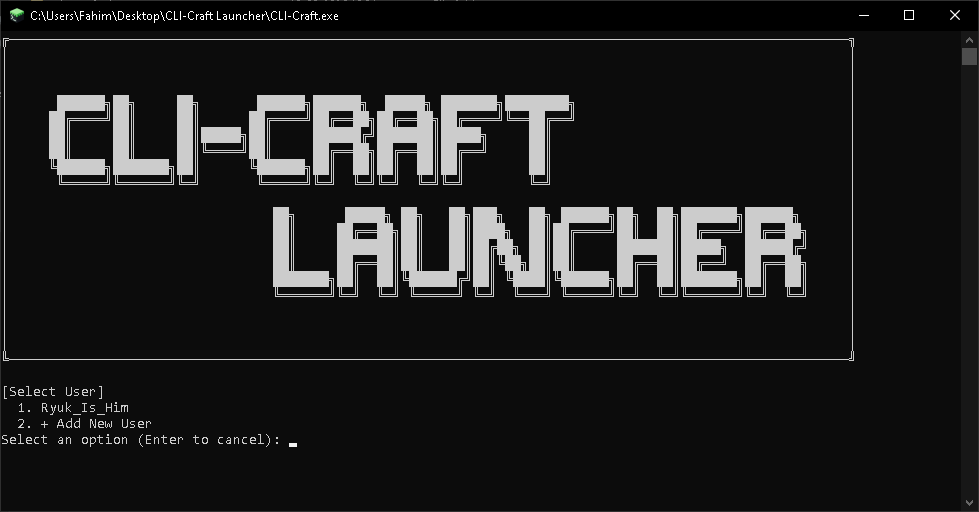
System Architecture
./features.shIsolated Instances
Keeps different Minecraft versions completely isolated. Every installation gets its own folder structure automatically.
Modrinth Integration
Search, download, and install Fabric modpacks directly from the terminal without manual zip extractions.
Smart Java Detection
Automatically scans PATH and common system directories to find and configure the correct Java runtime.
Offline Usernames
Create and save multiple offline usernames. Generates consistent offline UUIDs for seamless local play.
100% Portable
Never touches AppData. Creates a self-contained 'minecraft_data' folder next to the executable. Move it anywhere.
Performance Tuning
Easily allocate custom RAM and automatically apply optimized JVM flags for smoother gameplay.
Workflow & Installation
No installers. No registry edits. Just drop the executable and run.
Create a Dedicated Directory
Create a new empty folder anywhere on your drive (e.g., D:\Games\CLI-Craft). Place the downloaded executable inside this folder. The launcher uses its current working directory to keep all files localized.
- Zero AppData clutter
- USB Drive compatible
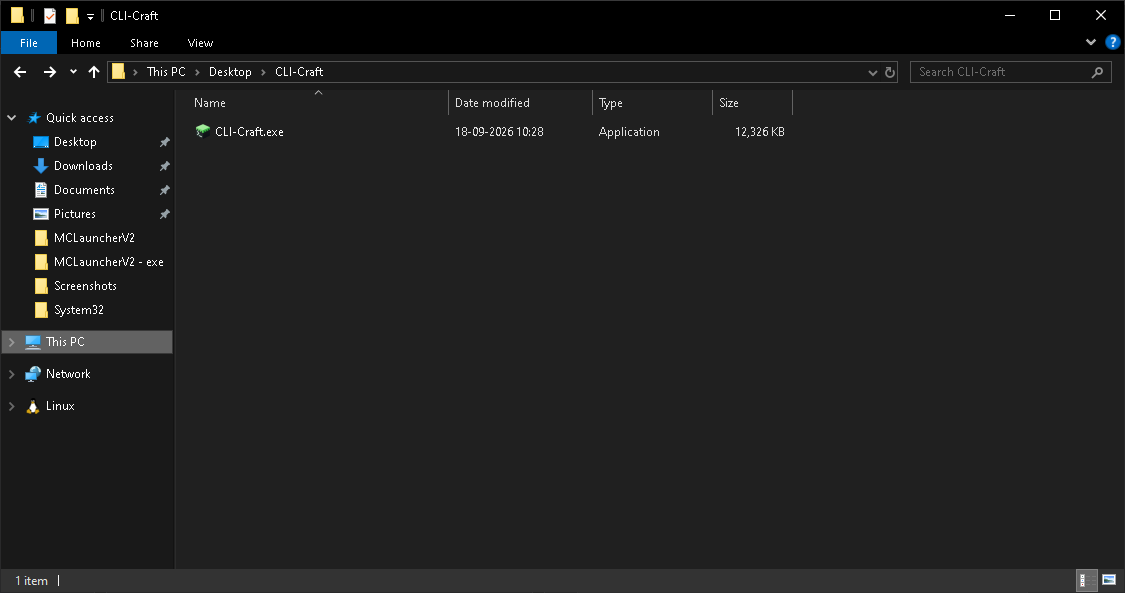
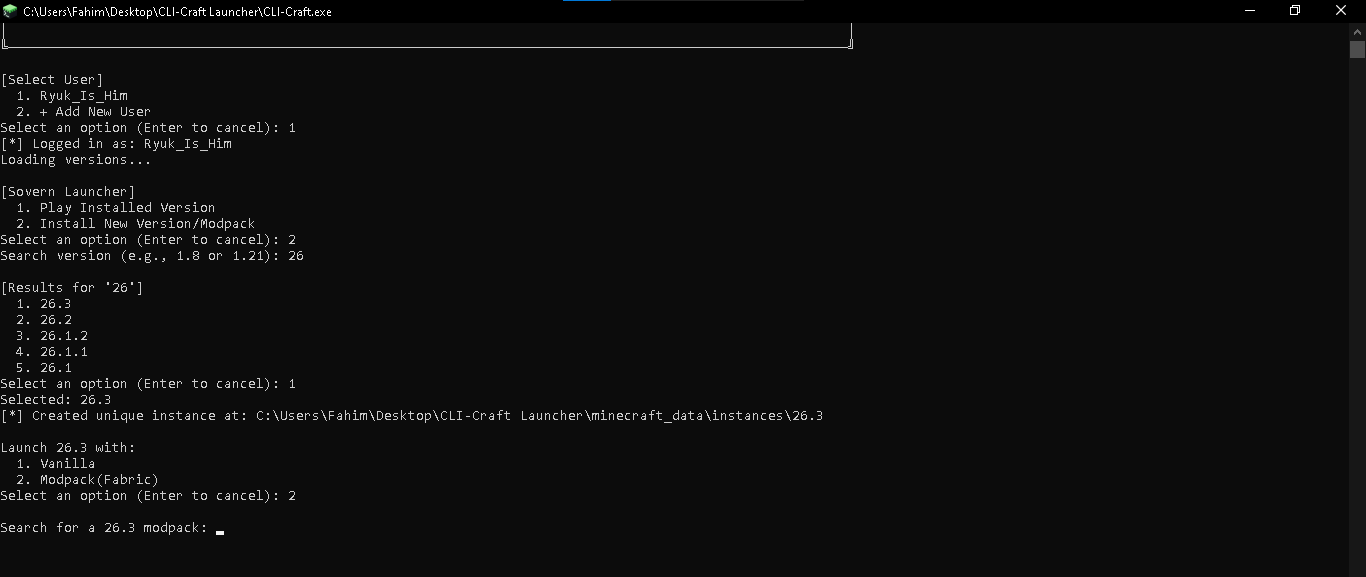
Search & Install Directly
Run the executable. The terminal interface will guide you through user creation, searching for Minecraft releases, and browsing Modrinth for Fabric modpacks—all via simple numbered menus.
Self-Contained Data
Upon first launch, a minecraft_data folder is generated. All versions, assets, libraries, and distinct instances are securely stored here. To backup or move your entire setup, simply move the parent folder.
CLI-Craft/
├── CLI-Craft Launcher.exe
├── usernames.txt
└── minecraft_data/
    ├── assets/
    ├── libraries/
    ├── versions/
    │   ├── 1.20.1/
    │   └── 1.21.1/
    └── instances/
        ├── 1.20.1/
        └── fabric-loader-.../
Quick Start Guide
The fastest way to get into the game.
11. Create a new folder.22. Put CLI-Craft Launcher.exe inside it.33. Run CLI-Craft Launcher.exe.44. Select an existing username or create one.55. Select "Install New Version/Modpack".66. Search for your Minecraft version.77. Select the version.88. Choose Vanilla or Modpack(Fabric).99. If using Fabric, select a Modrinth modpack.1010. Enter your RAM allocation in GB.1111. Select your Java installation.1212. Minecraft launches.
WARNING: Do not run the EXE from random locations (like your Downloads folder). Always create a dedicated folder to prevent minecraft_data from being generated in cluttered directories.